One-line hook: Want to add a little personality to your Mac messages? Finding the right emoji takes just a few seconds!
Introduction
You are typing an email, chatting with a friend, or writing an Instagram caption on your MacBook. Suddenly, you want to add a smile, a heart, or a funny reaction. But where is the emoji keyboard? If you have recently switched from a phone to a Mac, finding emojis might not feel obvious at first.
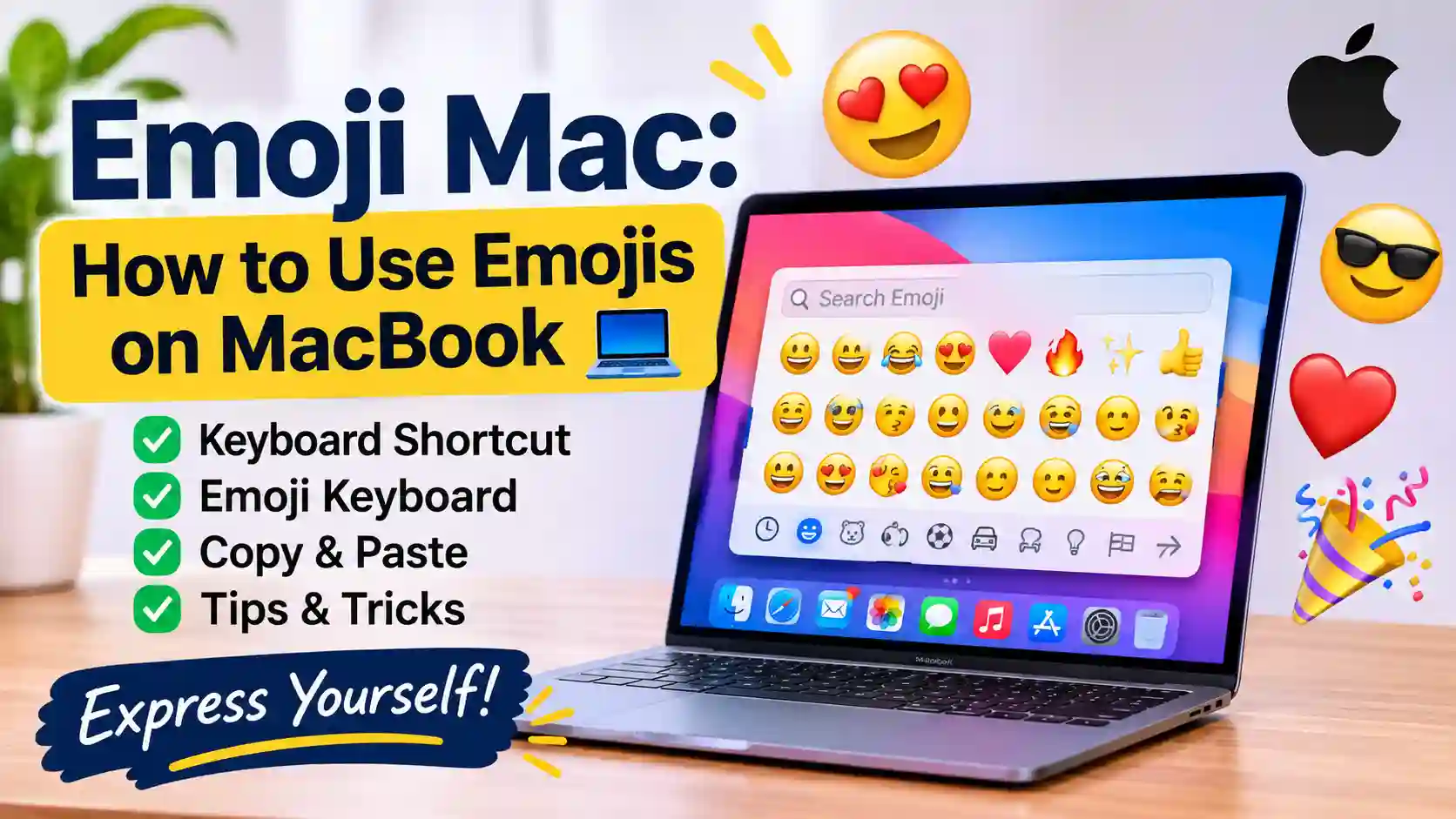
The good news is that macOS makes it easy to access thousands of emoji symbols without installing an extra application. You can open the built-in emoji keyboard with a simple keyboard shortcut, browse different categories, search for specific symbols, and copy and paste emojis into almost any text field.
In this guide, we will explain how to use emoji on Mac, how the Mac emoji keyboard works, and how to find your favorite symbols. Whether you use a MacBook Air, MacBook Pro, or iMac, these tips can make everyday communication easier. 😊
Your favorite emojis are only a keyboard shortcut away. ✨
5. What Does Emoji Mac Mean? 💻
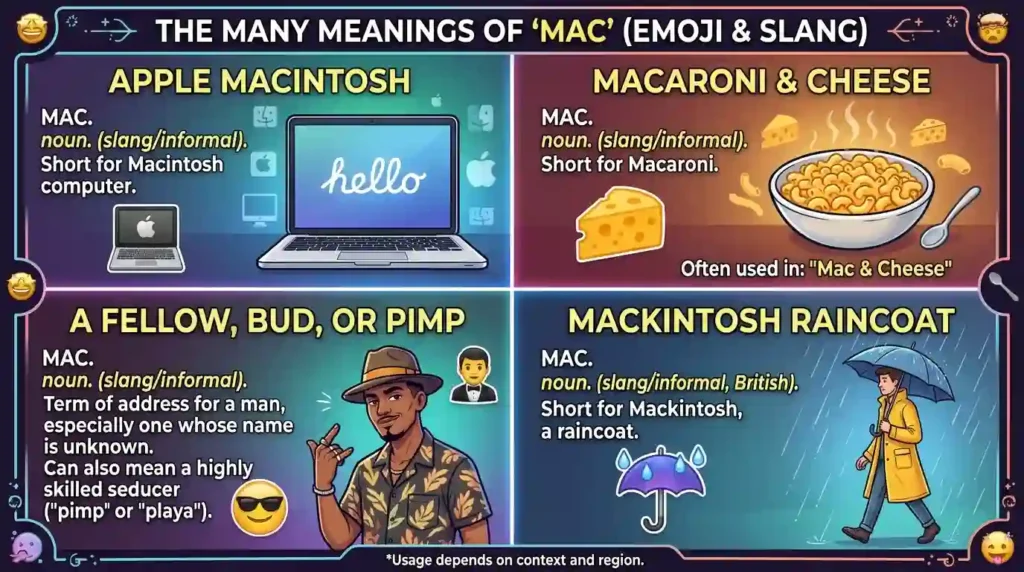
The phrase emoji Mac generally refers to using, finding, typing, and managing emojis on an Apple Mac computer. Unlike a physical keyboard with letters and numbers, a Mac keyboard does not display every available emoji as a separate key. Instead, macOS provides a built-in character viewer that lets you access emojis whenever you need them.
This feature is useful for everyday communication. You can add a smiling face to a message, put a heart in a social media caption, or include a celebration symbol in an email. You do not need to download a separate emoji keyboard just to use these symbols.
Here are six popular emojis you might want to use on your Mac:
- 😀 Grinning Face: A cheerful way to show happiness, excitement, or friendliness.
- 😂 Face with Tears of Joy: Often used when something is extremely funny. It works well in casual conversations and comments.
- ❤️ Red Heart: A familiar choice for affection, love, appreciation, and emotional support.
- 🔥 Fire: Can express excitement, admiration, or approval. People also use it when describing something impressive.
- ✨ Sparkles: Useful for adding a positive, decorative, or celebratory feeling to messages and captions.
- 👍 Thumbs Up: A simple way to acknowledge a message, agree with someone, or show approval.
The meaning of an emoji still depends on the conversation. For example, sending ❤️ to a close friend may express appreciation, while sending it to a romantic partner may communicate affection.
Likewise, 😂 can be a genuine reaction to a joke or a playful response to an awkward situation.
The Mac emoji keyboard makes these symbols easy to find, but choosing the right one depends on your message, relationship, and intended tone. It works across many apps, including Messages, Mail, Notes, and supported social media websites.
6. Emoji Mac Meaning Table
| Emoji | Common use | Possible misread | Best used when |
| 😀 | Happiness | Forced excitement | Friendly chats |
| 😂 | Laughter | Not taking something seriously | Funny conversations |
| ❤️ | Affection | Romantic interest | Personal messages |
| 🔥 | Excitement | Literal fire | Compliments |
| ✨ | Positive emphasis | Decoration only | Captions and announcements |
| 👍 | Agreement | Dismissive response | Quick replies |
7. Popular Mac Emojis: 10 Examples
😀 Grinning Face
Meaning: Happiness, friendliness, and excitement.
Example 1: Finally finished my project 😀
Example 2: That sounds like a great idea!
😂 Face with Tears of Joy
Meaning: Strong laughter and amusement.
Example 1: I cannot stop laughing at that video 😂
Example 2: Your joke made my entire day!
❤️ Red Heart
Meaning: Love, affection, care, and appreciation.
Example 1: Sending you lots of love ❤️
Example 2: Thank you for always supporting me.
🔥 Fire
Meaning: Excitement, admiration, and something impressive.
Example 1: Your new profile picture looks amazing 🔥
Example 2: That performance was incredible!
✨ Sparkles
Meaning: Beauty, positivity, excitement, and a decorative touch.
Example 1: A fresh start and new opportunities ✨
Example 2: Making today a little more special.
👍 Thumbs Up
Meaning: Agreement, approval, and acknowledgment.
Example 1: I will meet you at 5 PM 👍
Example 2: Sounds good to me!
🥰 Smiling Face with Hearts
Meaning: Warm affection, happiness, and appreciation.
Example 1: That was so sweet of you 🥰
Example 2: I really enjoyed spending time with you.
😊 Smiling Face with Smiling Eyes
Meaning: Kindness, warmth, and gentle happiness.
Example 1: Hope you have a wonderful day 😊
Example 2: It was lovely talking to you!
🎉 Party Popper
Meaning: Celebration, achievement, and exciting news.
Example 1: We finally did it! 🎉
Example 2: Congratulations on your new job!
🙏 Folded Hands
Meaning: Gratitude, appreciation, prayer, or asking politely.
Example 1: Thank you so much for your help 🙏
Example 2: Hoping everything goes well.
8. How to Use Emoji on Mac the Right Way
Using emojis on a Mac is simple once you know where to find them. The built-in Character Viewer lets you search for symbols and insert them directly into supported text fields. You can use it while chatting, writing emails, creating documents, or preparing social media content.
Here is how emojis can make your communication more expressive across different platforms.
WhatsApp 💬
WhatsApp is one of the most common places to use emojis on a Mac. If you use WhatsApp Web or the WhatsApp desktop application, you can type messages and insert emojis using the Mac emoji picker.
For example, open a conversation, click the message box, and press Control + Command + Space. Search for an emoji and select it to add it to your message.
You can use emojis in different situations:
- Personal chats: Add a friendly touch to everyday conversations.
- Family conversations: Make messages feel warmer and more welcoming.
- Friendships: React to jokes, exciting news, and funny stories.
- Emotional messages: Express appreciation or affection without writing a long response.
- Status updates: Make short updates more expressive.
Example: “Hope you have a beautiful day 😊”
Remember that the emoji picker works independently of WhatsApp. You can use the same shortcut in other compatible applications.
Instagram 📸
If you manage an Instagram account from your Mac, emojis can make captions, comments, and profile descriptions more expressive.
For example, you might use ✨ in a lifestyle caption or ❤️ when replying to a meaningful comment.
Here are some practical uses:
- Captions: Add a little personality to photo descriptions.
- Comments: Respond naturally to posts from friends and followers.
- Bios: Separate short phrases or highlight personal interests.
- Aesthetic posts: Use carefully selected symbols to complement a visual theme.
- Reels: Add emojis to descriptions and comments to support the tone of your content.
Example caption: “Small moments, beautiful memories ✨”
When creating professional content, choose emojis that match your brand’s personality rather than adding too many decorative symbols.
TikTok 🎵
TikTok users often include emojis in video captions, comments, and replies. If you create or manage videos on your Mac, you can insert emojis into supported text fields using the same keyboard shortcut.
For example, 😂 can work as a reaction to a funny video, while 🔥 can accompany a compliment about an impressive performance.
You can use emojis for:
- Short and catchy video captions.
- Funny reactions to trending videos.
- Replies to comments.
- Playful conversations with followers.
- Expressing excitement about creative content.
Example: “I wasn’t expecting that ending 😂”
Keep in mind that an emoji can communicate humor, sarcasm, or genuine excitement depending on the surrounding words.
Facebook supports emojis in posts, comments, and Messenger conversations. When using Facebook in a Mac browser, click the text field and open the Character Viewer.
You can add emojis to personal updates, congratulate friends, respond to comments, or make Messenger messages feel more conversational.
For example:
“Congratulations on your achievement! 🎉”
You can also use emojis in longer posts, but a few relevant symbols usually look cleaner than a paragraph filled with decorations.
9. Do’s and Don’ts of Using Emojis on Mac
The Mac emoji keyboard gives you plenty of choices, but using emojis thoughtfully makes a difference.
Do:
- Use emojis to support the meaning of your message.
- Choose symbols that match the conversation.
- Consider your relationship with the person receiving your message.
- Search for an emoji by its name instead of browsing endlessly.
- Use favorites for symbols you frequently insert.
- Check how your message appears before sending it.
- Use ❤️ or 😊 when they genuinely fit the tone.
Don’t:
- Add emojis randomly just to decorate a message.
- Assume everyone understands an emoji in exactly the same way.
- Overload a serious business email with playful symbols.
- Combine unrelated emojis without a clear purpose.
- Assume a heart always communicates romantic interest.
- Use too many symbols in professional captions.
- Forget to check whether the application supports emoji insertion.
A good rule is to let your words carry the main message and use emojis to add a little extra expression.
10. Why Do Emoji on Mac Look Different on iPhone and Android?
Have you ever sent an emoji from your MacBook and noticed that it looked slightly different on someone else’s phone? This is normal.
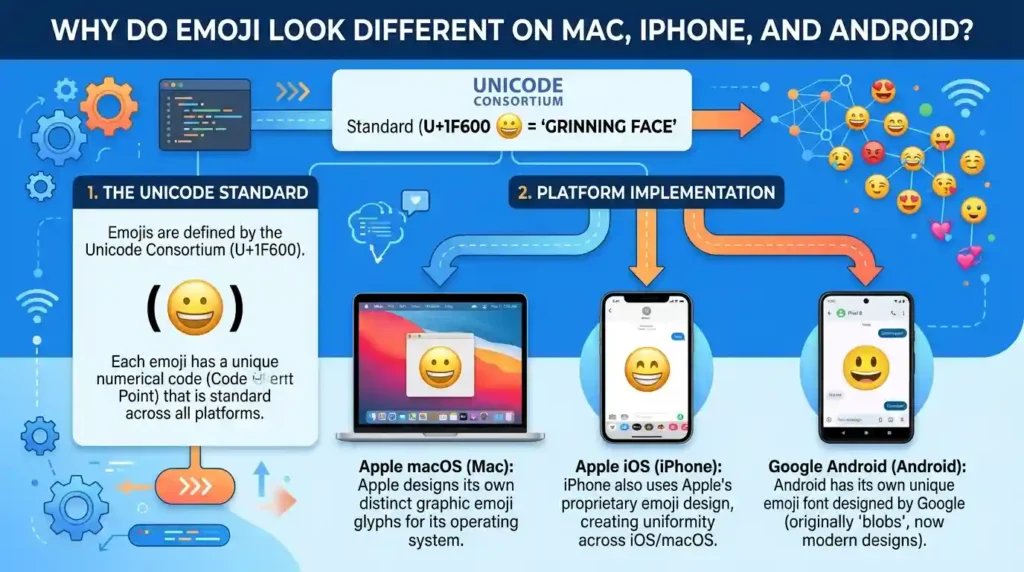
Emojis are based on the Unicode Standard, which provides a shared system for representing characters across different devices and operating systems. However, Unicode does not require every company to draw emojis in exactly the same style.
Apple creates its own emoji artwork for macOS and iOS. Google, Samsung, and Microsoft also have their own visual designs.
As a result, the same emoji can have slightly different appearances depending on the device.
Here are some differences you might notice:
1. Shape: A face, heart, or hand gesture may have a different outline.
2. Color: The shade of a particular emoji can vary between operating systems.
3. Facial expression: Small details around the eyes and mouth may look different.
4. Size: Emojis may appear larger or smaller depending on the application and text formatting.
5. Visual style: Apple and other companies use different illustration styles, even when displaying the same underlying character.
For example, when you send 😀 from a MacBook to an Android phone, the receiver generally sees the corresponding emoji in Google’s or Samsung’s design.
The underlying character remains the same, even though the artwork can look different.
Another important point is that older operating systems may not support newer emoji characters. In those situations, the receiver might see an empty box or an unsupported character instead of the expected symbol.
If you notice this problem, updating the operating system or application may help.
There is no universally correct visual design. Each platform simply presents supported Unicode characters using its own artwork.
Apple Support (UK)+1
11. Best Emoji Mac Combos: Copy & Paste
You can combine emojis to make messages, captions, and comments more expressive. The best combinations are usually simple and match the feeling you want to communicate.
Here are 15 combinations you can copy and paste into your conversations.
Romantic ❤️
- 👉 ❤️🥰: Use this for a sweet message to someone special.
- 👉 ❤️✨: Perfect for a romantic caption or loving note.
- 👉 🥰❤️: Send this to express affection and appreciation.
Cute 🥰
- 👉 😊✨: A lovely choice for a cheerful everyday message.
- 👉 🥰💕: Use this when someone does something thoughtful.
- 👉 😀❤️: A friendly combination for someone you care about.
Flirty 😉
- 👉 😉❤️: Add a playful touch to a romantic conversation.
- 👉 🔥😉: Use this for a cheeky compliment.
- 👉 ✨🥰: A sweet way to respond to someone’s attention.
Missing Someone 💭
- 👉 ❤️😊: Send this to someone you are thinking about.
- 👉 🥰✨: A gentle way to make someone feel appreciated.
- 👉 ❤️🙏: Use this when sending love and heartfelt wishes.
Good Night 🌙
- 👉 😊❤️: A warm ending to a friendly conversation.
- 👉 🥰✨: Perfect for a sweet nighttime message.
- 👉 ❤️💕: Send this to someone close before bedtime.
These combinations are suggestions, not fixed expressions. You can change them depending on your relationship and the message you want to send.
12. Trending Emoji Mac in 2026
Emojis remain a familiar part of digital communication in 2026. Mac users can access the same widely recognized emoji characters used in messaging apps, social media platforms, and other online services.
Some symbols are especially useful because they can communicate an emotion or reaction without requiring a long explanation.
Here are four popular choices and how people use them in everyday online communication.
😀 Grinning Face
The grinning face is a friendly choice for casual messages. People use it when sharing good news, greeting friends, or responding positively to something.
It works particularly well in WhatsApp conversations, Facebook comments, and everyday messages.
😂 Face with Tears of Joy
This emoji is commonly seen in funny conversations and social media comments. It helps communicate laughter when someone shares a joke, unexpected moment, or entertaining video.
TikTok and Instagram comments are natural places to use it.
❤️ Red Heart
The red heart remains a familiar choice for expressing affection and appreciation. It frequently appears in personal messages, Instagram comments, and captions.
Its tone can be romantic, friendly, or supportive depending on the relationship.
✨ Sparkles
Sparkles are useful for highlighting something special. Creators often include them in aesthetic captions, announcements, lifestyle posts, and decorative text.
They can make a short caption feel more cheerful without adding unnecessary words.
| Emoji | Why commonly used | Who uses it | Platform |
| 😀 | Friendly reactions | Everyday users | WhatsApp, Facebook |
| 😂 | Humor and laughter | Friends and creators | TikTok, Instagram |
| ❤️ | Affection and support | Everyone | All major platforms |
| ✨ | Decorative emphasis | Creators and bloggers | Instagram, TikTok |
These examples show how familiar symbols continue to serve different purposes across digital communication. Their popularity and interpretation can change with online habits, communities, and personal preferences.
13. Emoji Meaning in Different Contexts
The same emoji can communicate different feelings depending on where and why you use it. This is especially important when communicating with people who have different relationships with you.
Let’s look at some common situations.
Romantic Conversations
Romantic messages often use emojis to add warmth and affection. A heart can make a loving message feel more personal, while a smiling face can soften a short reply.
Examples:
- “I had such a wonderful time with you ❤️”
- “You always make me smile 🥰”
However, sending a heart does not automatically mean someone is romantically interested. Look at the complete conversation before interpreting the message.
Friendship
Friends frequently use emojis to make everyday conversations more entertaining.
A laughing face can react to a funny story, while a thumbs-up can acknowledge plans.
Examples:
- “That was the funniest thing today 😂”
- “See you tomorrow 👍”
The meaning often depends on the friendship and the way both people normally communicate.
Family Conversations
In family chats, emojis can make ordinary updates feel warmer.
For example, parents might use a smiling face to encourage someone, while family members might use a heart to express appreciation.
Examples:
- “Congratulations on your achievement! 🎉”
- “Thank you for everything ❤️”
Professional and Casual Communication
Emojis can also appear in workplace conversations, but it is important to consider the situation.
A thumbs-up may be appropriate when confirming a simple task. However, a formal business proposal or serious complaint might be better without decorative symbols.
Examples:
- “The updated document is ready 👍”
- “Thank you for your feedback.”
Choose a professional tone when communicating with clients, managers, or people you do not know well.
Texting and Social Media Comments
Short messages sometimes lack facial expressions and vocal tone. Emojis can help communicate whether a response is friendly, humorous, or appreciative.
For example:
- “That looks amazing 🔥”
- “I really needed this today 😊”
On social media, the same symbol may also become part of a community joke, trend, or caption style.
Instagram and Facebook Captions
Creators often use emojis to make captions easier to scan and more visually appealing.
For example:
“New beginnings, fresh ideas, and beautiful memories ✨”
A well-chosen emoji can support the message, but the written caption should still make sense without it.
14. How to Copy and Paste Emoji on Mac
Sometimes you do not want to open the emoji keyboard and search for a symbol. You simply want to copy an emoji and paste it somewhere.
Fortunately, macOS supports ordinary copy-and-paste functionality for emoji characters.
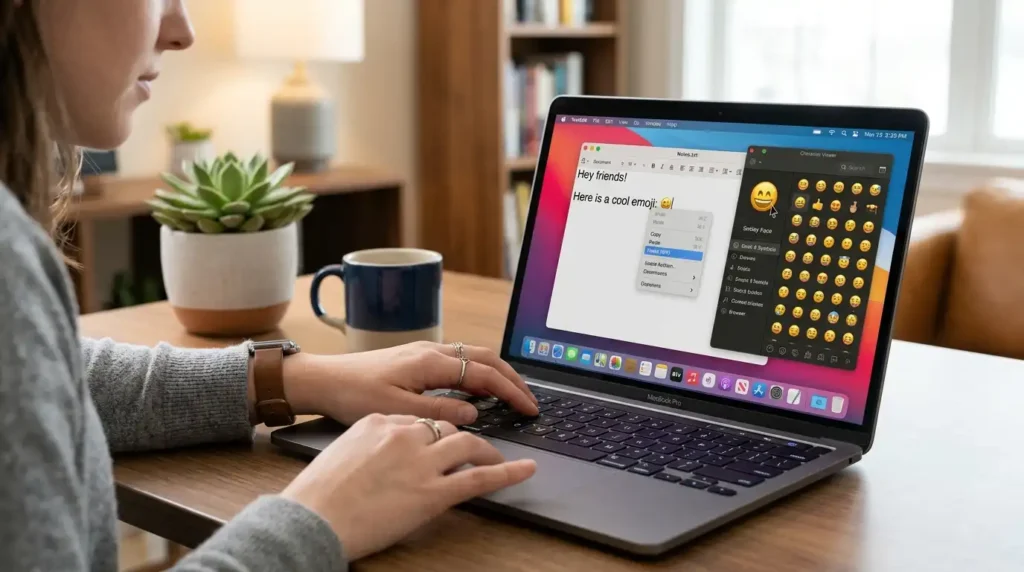
Here is how to do it:
- Find the emoji you want to use.
- Select the emoji with your mouse or trackpad.
- Press Command + C to copy it.
- Open WhatsApp, Instagram, TikTok, Facebook, or another application.
- Click inside the text field.
- Press Command + V to paste it.
Copy and paste these popular Mac emojis
😀 😂 ❤️ 🔥 ✨ 👍
Copy all emojis
You can also save frequently used emojis in a document or note so you can access them whenever needed.
This is particularly helpful if you regularly write social media captions, create blog content, or manage multiple online accounts from your Mac.
15. Frequently Asked Questions About Emoji Mac
1. What is the most popular emoji on Mac?
There is no single emoji that is officially the most popular specifically on Mac. However, familiar choices include 😀, 😂, ❤️, and 😊. The best option depends on your conversation.
2. What does an emoji mean when someone sends it from a Mac?
An emoji sent from a Mac generally has the same basic interpretation as that character sent from another device. Its meaning depends on the message, relationship, and conversation rather than the sender’s gender or device.
3. Why do emojis look different on iPhone vs Android?
Apple and Android manufacturers create their own emoji artwork using the Unicode character system. Therefore, the same emoji can have different colors, shapes, and visual details across devices.
4. Are Mac emojis used differently in other countries?
Emoji interpretations can vary between countries, communities, and online cultures. A symbol that feels friendly in one conversation might have another meaning elsewhere. Consider the recipient and context before interpreting an emoji.
16. Conclusion
Using emojis on Mac is easy once you know how to open the Character Viewer and search for your favorite symbols.
The Control + Command + Space shortcut makes inserting emojis quick and convenient.
Whether you are chatting, writing captions, or sending emails, choose emojis that naturally match your message.
Have fun expressing yourself and make every conversation a little more personal! 😊